
REFRACT Platform Connector for Power Platform
Connect Power Automate and Power Apps to your organization's REFRACT Platform Dispatcher. Generate PDFs, send documents for e-signature and approval workflows, and retrieve sealed documents - without writing code.
From Connector Installation to First Document Flow: Four Steps.
No database to provision. No portal to build or host. No separate identity system.
REFRACT Platform deploys into your existing Microsoft environment and uses services you already govern - Azure, SharePoint, Dataverse, and Microsoft Entra ID.
- Provision Storage: SharePoint libraries and configuration are created automatically by your Dispatcher deployment
- Install the Connector: Add the REFRACT Platform Connector to your Power Platform environment
- Create a Connection: Enter your Dispatcher URL and the client credentials your IT admin provisioned for the connector
- Build Your First Flow: Use the Generate Document action in any Power Automate flow and generate your first document
Overview
The REFRACT Platform Connector for Microsoft Power Platform lets Power Automate flows and Power Apps generate PDFs, trigger e-signature and approval workflows, and retrieve sealed documents - all connected to your organization's self-hosted REFRACT Platform Dispatcher.
Key characteristics:
- No coding required - pre-built actions in Power Automate and Power Apps
- Self-hosted - connects to your organization's own Dispatcher, not a shared service
- OAuth 2.0 client credentials - each connection is created with a Dispatcher URL and an Azure AD app registration's tenant ID, client ID, client secret, and scope; there is no interactive user sign-in
- Data sovereignty - documents are generated and stored in your Azure tenant; REFRACT eSign and REFRACT Workflow use a REFRACT-hosted portal to reach signers and recipients
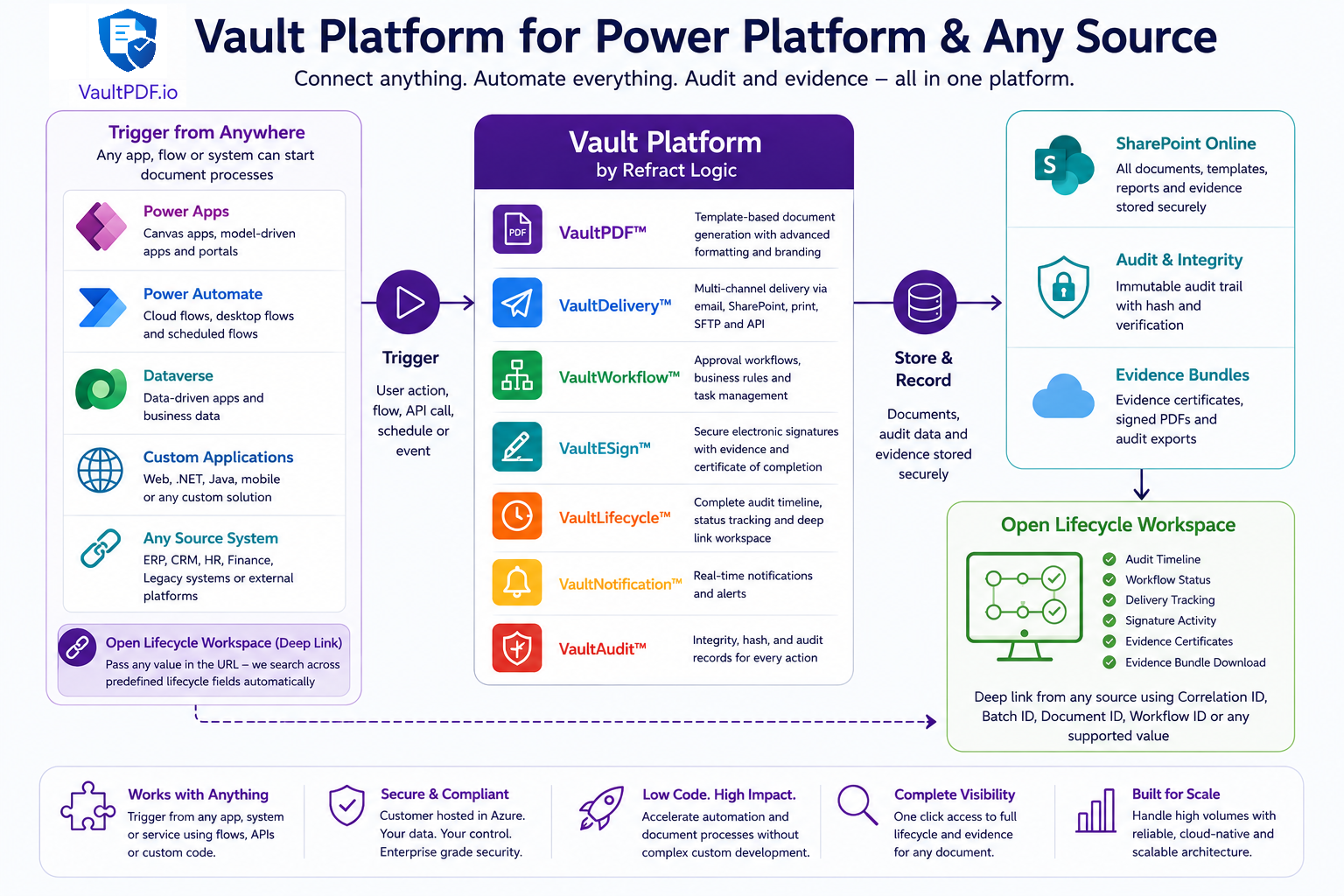
A Different Kind of Connector
Most document connectors are tightly coupled to specific document types. Adding a new document type means updating the connector, redeploying it, and rebuilding flows. REFRACT Platform is architected differently.
Why REFRACT Platform works differently
In REFRACT Platform, the payload drives behaviour and the template drives rendering. The connector has no knowledge of document types - it simply delivers your payload to the Dispatcher, which resolves the correct template, features, and workflow from the schema. This means you can introduce new document types, templates, and workflows without ever touching the connector or rebuilding flows.
The four connector actions cover the entire document lifecycle regardless of how many document types your organization manages:
| Action | What it does |
|---|---|
| Generate Document | Render any PDF from any template with any payload. The same action drives plain rendering, e-signature, and approval workflows - behavior is controlled by the templateSettings you send, not by calling a different action |
| Check Workflow Status | Poll any approval or signature workflow |
| Download Sealed PDF | Stream the bytes of any completed signed document |
| Get Document URL | Stream the bytes of any stored document by blob path |
Authentication Model
The REFRACT Platform Connector uses OAuth 2.0 client credentials (app-to-app), not an interactive user sign-in.
Creating a connection requires five values: the Dispatcher URL, and the tenant ID, client ID, client secret, and OAuth scope of an Azure AD app registration your IT admin sets up for the connector. The connector's own code acquires a fresh access token from Azure AD for every request using these values, then forwards the request to the Dispatcher with that token as a Bearer credential. There is no per-user sign-in window and no token refresh to manage - each call re-authenticates with the stored client credentials.
Tenant Isolation
Before processing any request, the Dispatcher validates three JWT claims - issuer (iss), audience (aud), and tenant ID (tid). All three must match. A token that passes issuer and audience validation but contains a different tenant ID is rejected, preventing cross-tenant access.
Flow runs an action
    │
    ├── Power Platform reads the connection's stored parameters
    │     (Dispatcher URL, Tenant ID, Client ID, Client Secret, Scope)
    │
    ├── Connector's script acquires an Azure AD token via
    │     grant_type=client_credentials using those values
    │
    └── Request forwarded to Dispatcher with the resulting Bearer token
          Dispatcher validates iss, aud, and tid claims - processes request
The client secret is entered once when the connection is created and stored encrypted as part of that connection. It is never sent to the Dispatcher directly - only the resulting Bearer token is.
Capabilities
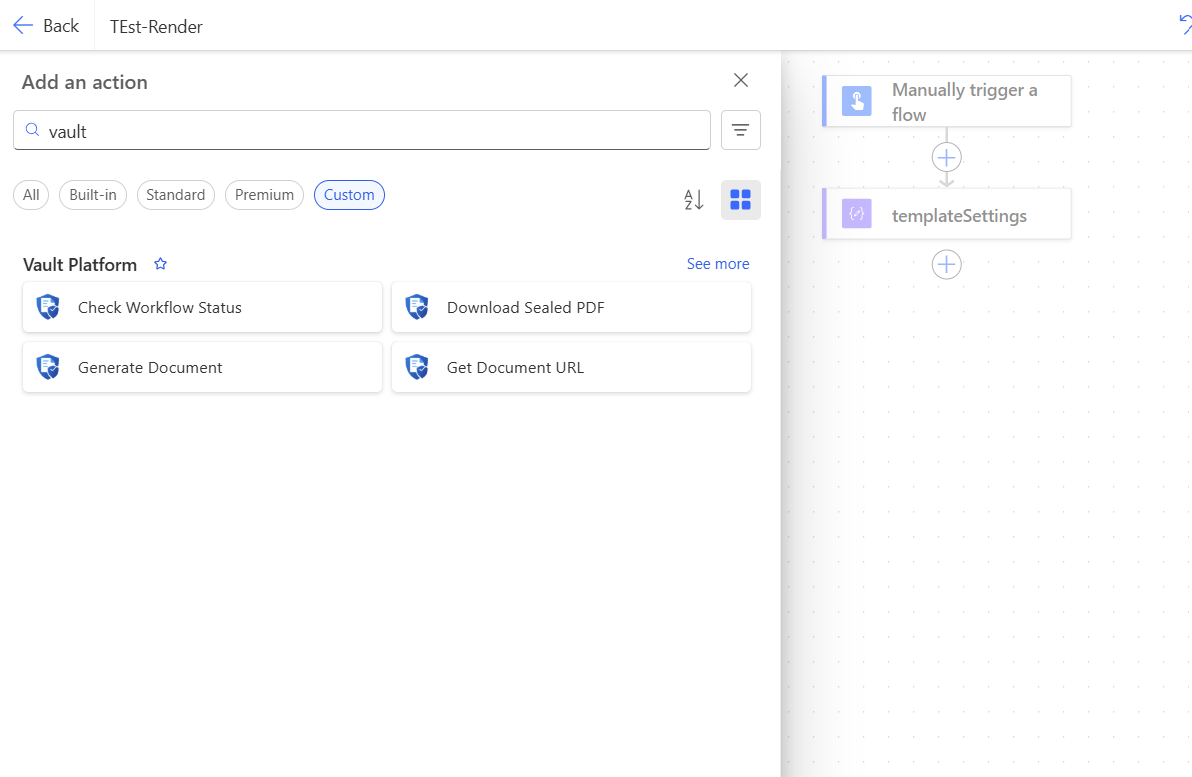
| Action | Description | Common Use |
|---|---|---|
| Generate Document | Render a PDF from a template and data payload. Supports e-signature, approval workflows, watermarks, and feature flags | Invoice generation, contract creation, onboarding docs |
| Get Document URL | Stream the bytes of a stored document by blob path (a binary response, not a JSON URL) | Attach to an email, save to SharePoint or OneDrive |
| Check Workflow Status | Poll the current state of a signature or approval workflow | Monitor progress; drive Do Until loops |
| Download Sealed PDF | Stream the bytes of the final countersigned PDF once a workflow is complete | Archive, email to customer, upload to SharePoint |
Prerequisites
IT Admin Setup Required
Before a flow maker can create a connection, an IT admin must complete the Connector Setup & Configuration steps.
The flow maker needs five values from their IT admin to create a connection - there is no interactive sign-in step:
| Value | Example |
|---|---|
| Dispatcher URL | https://func-dispatcher-contoso-prod.azurewebsites.net |
| Azure AD Tenant ID | c49962a1-53d3-4af8-8d5d-35f34cd0be9c |
| Client ID | The connector app registration's Application (client) ID |
| Client Secret | The connector app registration's client secret value |
| OAuth Scope | api://<dispatcher-app-client-id>/.default |
Quick Start
Create a Connection
Open Power Automate
Go to make.powerautomate.com and sign in.
Navigate to Connections
In the left sidebar go to Data → Connections. Click + New connection.
Find the REFRACT Platform Connector
Search for REFRACT Platform. Select the connector from the results.
Enter the Connection Fields
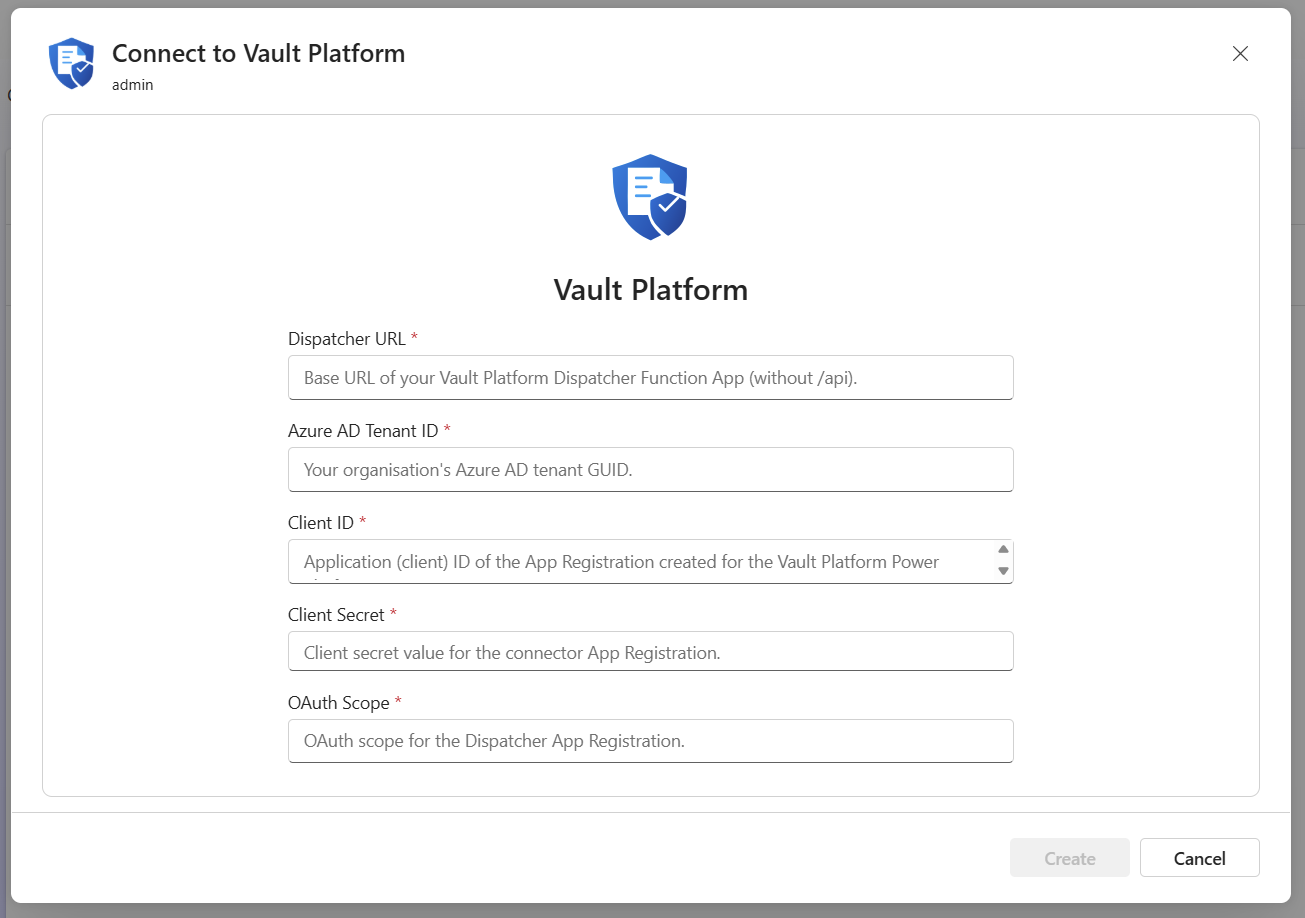
| Field | What to enter |
|---|---|
| Dispatcher URL | Base URL of the Dispatcher Function App - no /api suffix |
| Azure AD Tenant ID | Your organization's tenant GUID |
| Client ID | Application (client) ID of the App Registration created for this connector |
| Client Secret | That App Registration's client secret value |
| OAuth Scope | api://<dispatcher-app-client-id>/.default, where <dispatcher-app-client-id> is the client ID of "REFRACT Dispatcher API" |
No trailing /api in Dispatcher URL
Enter https://func-dispatcher-contoso-prod.azurewebsites.net - not https://func-dispatcher-contoso-prod.azurewebsites.net/api. The /api prefix is handled automatically.
Create the Connection
Click Create. The connection is saved with these five values - there is no sign-in window and no connection test at creation time, since this connector does not define one. The first action call in a flow is what actually exercises the credentials; if they are wrong, that call fails with an authentication error (see Troubleshooting).
Common Flow Patterns
Generate an invoice PDF and email it to the customer.
Trigger: When a record is created (Dataverse  -  Sales Order)
Condition: Status = Approved

Action: Generate Document
  templatePath: "BC/Sales/SalesInvoice.rpkg"
  payloadPath:  "payloads/[Order Number].json"
  options: {
    "documentId": "[Order Number]",
    "docType": "invoice",
    "sourceSystem": "BusinessCentral",
    "generatedBy": "erp-service@contoso.com",
    "features": {
      "generatedDocuments": true,
      "auditSnapshot": true
    }
  }

Action: Send an email
  To:         [Customer Email]
  Subject:    Invoice [Order Number]
  Body:       Your invoice for order [Order Number] is attached.
  Attachment: body of Generate Document (the PDF binary returned directly by the action)
Generate Document returns the PDF binary directly, not a link - see API Reference for the response headers that carry the blob path, workflow ID, and correlation ID.
Generate a contract PDF and route it for electronic signature. Poll until the workflow reaches a terminal state, then archive the sealed document.
Trigger: When a record is created (Dataverse  -  Contract)

Action: Generate Document
  templatePath: "Legal/Contracts/ServiceAgreement.rpkg"
  payloadPath:  "payloads/contracts/[Contract ID].json"
  templateSettings: {
    "esign": {
      "enabled": true,
      "signers": [{ "slotIndex": 0, "role": "Signer", "email": "[Signer Email]", "namePrefill": "[Signer Name]" }],
      "expiresInMinutes": 10080
    }
  }
  options: {
    "documentId": "[Contract ID]",
    "docType": "contract",
    "features": {
      "generatedDocuments": true,
      "auditSnapshot": true,
      "vaultESign": true,
      "immutableAudit": true,
      "explainDocument": true
    }
  }

Action: Store Workflow ID in Dataverse record
  workflowId: [X-Refract-WorkflowId header from Generate Document]

Action: Do Until  state = "complete"  OR  state = "rejected"  OR  state = "cancelled"
  ├── Delay: 2 minutes
  └── Check Workflow Status
        Workflow ID: [Workflow ID]

Action: Condition  state = "complete"
  Yes → Download Sealed PDF (Workflow ID)
         Create file in SharePoint (body of Download Sealed PDF - the PDF binary)
  No  → Send rejection notification
Generate a purchase requisition and route it for management approval.
Trigger: When a record is created (Dataverse  -  Purchase Requisition)

Action: Generate Document
  templatePath: "Procurement/PurchaseRequisition.rpkg"
  payloadPath:  "payloads/requisitions/[Req ID].json"
  templateSettings: {
    "workflow": {
      "enabled": true,
      "recipients": [{ "email": "manager@contoso.com", "displayName": "Finance Manager" }],
      "message": "Please approve requisition [Req ID]",
      "expiresInDays": 1
    }
  }
  options: {
    "documentId": "[Req ID]",
    "docType": "workflow",
    "features": {
      "generatedDocuments": true,
      "auditSnapshot": true,
      "vaultESign": true,
      "immutableAudit": true
    }
  }

Action: Update record - store Workflow ID

Action: Do Until  state = "complete"  OR  state = "rejected"  OR  state = "cancelled"
  ├── Delay: 10 minutes
  └── Check Workflow Status (Workflow ID)

Action: Condition  state = "complete"
  Yes → Update record: Status = Approved
         Download Sealed PDF → attach to record
  No  → Update record: Status = Rejected
         Send notification to requestor
Poll on state, not a boolean flag
Check Workflow Status returns a state field with one of thirteen possible values (for example pending-approval, complete, rejected, cancelled). There is no isComplete or isRejected field in the response - build Do Until conditions against state instead. See the API Reference for the full list of states and recommended polling intervals.
Security Model
Every API call to the Dispatcher is validated against three JWT claims:
| Claim | What it validates |
|---|---|
aud | Token was issued for the Dispatcher's App Registration - rejects tokens for other apps |
iss | Token was issued by your Microsoft Entra ID tenant - rejects tokens from foreign identity providers |
tid | Token belongs to the authorised tenant - prevents cross-tenant access |
The connection stores the client secret encrypted; it is used only by the connector's own code to acquire a Bearer token from Azure AD for each request and is never forwarded to the Dispatcher itself. Acquired tokens are not visible in flow run history, logs, or action outputs.
Rate Limiting
To prevent runaway loops from overwhelming the Dispatcher:
- Limit: 100 requests per 60 seconds per tenant/app combination
- When exceeded:
429 Too Many Requestswith aRetry-Afterheader - Scope: In-memory per function instance
Next Steps
- Connector Setup & Configuration - IT admin App Registration setup and connection creation
- API Reference - Full parameter definitions, response schemas, error codes
Security & Legal
- Trust Center - Security controls, compliance posture, and data handling - share with your security or procurement team
- Privacy Policy - How data is processed and protected within your Azure tenant
- Terms of Service - Legal terms governing use of REFRACT Platform
Troubleshooting - REFRACT Platform for Dynamics 365 Sales
Diagnose and resolve common REFRACT Platform CRM issues. Security role errors, environment variable misconfigurations, plugin failures, SharePoint connectivity, workflow enforcement, and batch operation problems.
Connector Setup & Configuration
IT admin guide for the REFRACT Platform Power Platform connector. Covers App Registration setup, connection parameter reference, and environment management.