
Signature Zones
Reserve signature, initials, and field zones in your PDFs. REFRACT eSign completes each zone by matching signers to zones by role and placing each captured signature in its zone. Optionally append an Approval & Verification page.
A signature zone reserves space in a PDF and defines where each signer signs. REFRACT eSign completes the zone: it matches each signer to their zone by role, captures the signature, and places it in the zone when the document is sealed. REFRACT PDF renders the zones and does not capture signatures itself. REFRACT eSign is licensed separately from REFRACT PDF.
Without REFRACT eSign, a zone is a reserved rectangle with a plain-text anchor in it, and that anchor text can also be used by other e-signature platforms that place fields by anchor text.
REFRACT PDF can also append an optional Approval & Verification page that lists all signers and document metadata, with an optional thumbprint and QR code.
A zone is a placeholder
A signature zone reserves space and carries an anchor. The electronic signature itself is captured by REFRACT eSign and placed in the zone at sealing. See How Zones Connect to REFRACT eSign.
[[SIGN_<ROLE>|required]]    # anchor for a required zone
[[SIGN_<ROLE>|optional]]    # anchor for an optional zone
How Zones Connect to REFRACT eSign
Render
Each zone prints an anchor such as [[SIGN_MANAGER|required]]. The role is upper-cased, anything other than letters and digits collapses to an underscore, and the prefix comes from the field type: SIGN, INITIALS, CHECK, DATE, or TEXT.
Send
The eSign request lists each signer with a role, an email address, and a slot number. Before any invitation is sent, REFRACT eSign checks the request against the template and refuses it when the template has no zones, when a signer's role matches no zone, or when a required zone has no signer.
Sign
The signing page finds the anchors in the document text and highlights each signer's zones. The signer is guided through the signature, then initials when the zone asks for them, then consents.
Seal
REFRACT eSign re-renders the document with each captured signature and initials placed in their zones, and the anchor text is not printed in the sealed document. If a zone that a requested signer maps to, or a required zone, is still unfilled, the seal is refused instead of delivering a document with a gap.
For the signing flow itself, see REFRACT eSign and the Field Manifest.
Signer roles
A zone and a signer are joined by role, and nothing else. The template declares a role on each zone (role on a signature node, or on a signatory of a signature_block), and the eSign request names a role for each signer.
- The match ignores case and treats spaces as underscores, so a request role of
client managermatches a zone with the roleClient Manager. - One role can own several zones, such as a signature and a date. All of them belong to the same signer.
- Signing order is set in the request, by each signer's slot number, and not by where a zone sits in the document. In sequential mode only the first slot starts active, and the others wait for their turn.
- The payload key for a zone's name and date is the role in lower case with spaces replaced by underscores, so
Client Managerusessignatures.client_manager.
Required and optional zones, and initials
required: true (default) | required: false | |
|---|---|---|
| Anchor text | [[SIGN_ROLE|required]] | [[SIGN_ROLE|optional]] |
| Sending the request | A signer for this role must be in the request, or the request is refused | The role may be left out of the request |
| Sealing | An unfilled zone stops the seal | If the role was not requested, the zone is left out of the sealed document, with no anchor, line, or border, and the omission is recorded in the audit chain |
required decides whether a role may be left out of a request. It does not let a requested signer skip a zone: once a signer is requested, their signature and initials zones are mandatory. Zones with fieldType of check, date, or text follow their own required setting.
Initials. A zone with fieldType: "initials" prints an [[INITIALS_ROLE|...]] anchor and gives the signer a separate initials step. In a structured document, set includeInitials: true on a signature_block signatory to add an initials zone above the signature (see Structured Content). The initials zone sits above the signature in the document, and the signing flow asks for the signature first.
Key Capabilities
Reserved Signature Box
Each zone renders as a bordered, fixed-size rectangle. No surrounding content overflows into it. Width, height, and border style are fully configurable per zone.
Role-Based Zones
Assign a unique role to each zone (preparer, manager, customer, legal, cfo, etc.). The role becomes part of the anchor tag, maps to the data payload, and joins the zone to its signer in the eSign request.
Optional Name & Date
showName and showDate render pre-filled signer info from the data payload below the box. Each flag is independently toggleable.
Extended Anchor Types
Beyond signatures, REFRACT PDF supports Initials, Checkbox, Date, and Text anchor types.
Works Everywhere
Signature zones are first-class layout elements. They work inside nested tables, overflow sections, and both real-time and batch rendering modes.
Approval & Verification Page
Optionally append a consolidated approval page with signer grid, document metadata, thumbprint, and QR code, all driven by the same signatures payload.
SharePoint Audit Trail
After signing, metadata can be stamped back to SharePoint for full document-level auditability and compliance tracking.
Inline Signature Zones
Schema Reference
Add signature zones as children of any section node using "type": "signature".
{
  "type": "signature",
  "label": "Manager Approval",
  "role": "manager",
  "fieldType": "sign",
  "width": 220,
  "height": 80,
  "required": true,
  "showName": true,
  "showDate": true,
  "borderStyle": "full",
  "textColor": "#000000"
}
Properties
| Property | Type | Default | Description |
|---|---|---|---|
label | string | "Signature" | Text displayed above the box |
role | string | "signer" | Signer role. It forms the anchor, matches the signer's role in the eSign request, and maps to signatures.<role> in the payload |
fieldType | string | "sign" | Type of field to render. Options: sign, initials, check, date, text. Controls the anchor prefix. Any other value gets the SIGN prefix |
width | number | 200 | Box width in points |
height | number | 50 | Box height in points |
required | boolean | true | Controls whether the anchor emits required or optional, and whether the role may be left out of the eSign request (see Required and optional zones). Can be overridden per-signer in the data payload |
showName | boolean | true | Displays signer name from signatures.<role>.name |
showDate | boolean | true | Displays signed date from signatures.<role>.date |
borderStyle | string | "full" | Box border style. full = full rectangle, minimal = bottom line only, none = no box (anchor text only) |
textColor | string | theme primary | Anchor text color inside the box. Use "#FFFFFF" for invisible anchors on white backgrounds |
Data Payload
Signature data lives under a top-level signatures object in the payload. Each key is the template role in lower case with spaces replaced by underscores, so a role of Client Manager uses the key client_manager.
Single Approver
{
  "documentTitle": "Purchase Order #PO-2026-001",
  "orderNumber": "PO-2026-001",
  "vendor": "Acme Supplies Ltd.",
  "totalAmount": 12500.00,
  "currency": "USD",
  "requestedBy": "Jane Smith",
  "department": "Operations",
  "signatures": {
    "manager": {
      "name": "Robert Chen",
      "date": "2026-03-15",
      "required": false
    }
  }
}
Overriding required in the payload
Adding "required": false to a signer entry overrides the template default for that signer only. The anchor emits optional instead of required, for example [[SIGN_MANAGER|optional]].
Three-Stage Approval
{
  "documentTitle": "Capital Expenditure Request #CAPEX-2026-042",
  "requestNumber": "CAPEX-2026-042",
  "projectName": "Server Infrastructure Upgrade",
  "requestedAmount": 245000.00,
  "currency": "USD",
  "requestedBy": "Michael Torres",
  "department": "IT Infrastructure",
  "signatures": {
    "preparer": { "name": "Michael Torres", "date": "2026-03-10" },
    "manager":  { "name": "Sarah Kim",      "date": "2026-03-12" },
    "customer": { "name": "David Okafor",   "date": "" }
  }
}
Enterprise Five-Party Signing
{
  "documentTitle": "Master Services Agreement - Enterprise License",
  "contractId": "MSA-2026-ENT-007",
  "effectiveDate": "2026-04-01",
  "vendorName": "Northwind Supply Co.",
  "clientName": "Contoso Corporation",
  "contractValue": 120000.00,
  "currency": "USD",
  "signatures": {
    "preparer": { "name": "Alice Nguyen", "date": "2026-03-14" },
    "legal":    { "name": "James Obi",    "date": "2026-03-14" },
    "finance":  { "name": "Priya Mehta",  "date": "" },
    "cfo":      { "name": "",             "date": "" },
    "customer": { "name": "",             "date": "" }
  }
}
Payload Notes
- Keys inside
signaturesare the templaterolevalues in lower case, with spaces replaced by underscores. nameanddateare optional. REFRACT PDF still renders the box and anchor if omitted or empty.- An empty string or
nullfordateleaves the date blank. - Add
"required": falseto any signer entry to downgrade that zone to optional at runtime. - The anchor is structural and is always injected regardless of whether
nameordateare present.
Anchor Format Reference
The anchor format is [[<PREFIX>_<ROLE_UPPERCASE>|required/optional]]. The prefix is determined by the fieldType property on the schema node.
fieldType to Anchor Prefix
fieldType | required: true | required: false |
|---|---|---|
"sign" | [[SIGN_MANAGER|required]] | [[SIGN_MANAGER|optional]] |
"initials" | [[INITIALS_MANAGER|required]] | [[INITIALS_MANAGER|optional]] |
"check" | [[CHECK_MANAGER|required]] | [[CHECK_MANAGER|optional]] |
"date" | [[DATE_MANAGER|required]] | [[DATE_MANAGER|optional]] |
"text" | [[TEXT_MANAGER|required]] | [[TEXT_MANAGER|optional]] |
Schema node examples
{ "type": "signature", "props": { "role": "manager", "fieldType": "sign",     "required": true  } }
{ "type": "signature", "props": { "role": "manager", "fieldType": "initials", "required": true  } }
{ "type": "signature", "props": { "role": "manager", "fieldType": "check",    "required": false } }
{ "type": "signature", "props": { "role": "manager", "fieldType": "date",     "required": true  } }
Payload override
The required flag can be overridden at signer level in the data payload independently of the template:
"signatures": {
  "customer": {
    "name": "Robert Chen",
    "date": "2026-03-15",
    "required": false
  }
}
This produces [[INITIALS_CUSTOMER|optional]] when fieldType is "initials", regardless of the template setting.
How Inline Zones Render
Box Reservation
A bordered rectangle is drawn at the configured width and height. The zone is a block-level element and no surrounding content flows into it. borderStyle controls whether a full box, bottom-line-only, or no border is drawn.
Label Rendering
The label value is rendered above the box in the active section font and style.
Anchor Injection
A plain-text anchor is injected inside the box at render time. The format is [[<PREFIX>_{ROLE_UPPERCASE}|{required|optional}]]. REFRACT eSign scans the document text for this string to find where each signer's zone is. In the sealed document, the anchor is replaced by the captured signature.
Name & Date Lines
If showName or showDate is enabled, REFRACT PDF reads signatures.<role>.name and signatures.<role>.date from the payload and renders pre-filled lines below the box.
Approval & Verification Page
The Approval & Verification page is an optional last page appended to the document. It consolidates all signers into a structured grid and optionally includes a thumbprint and QR code. It is triggered separately from inline zones.
Invoice-2026-0029.pdf
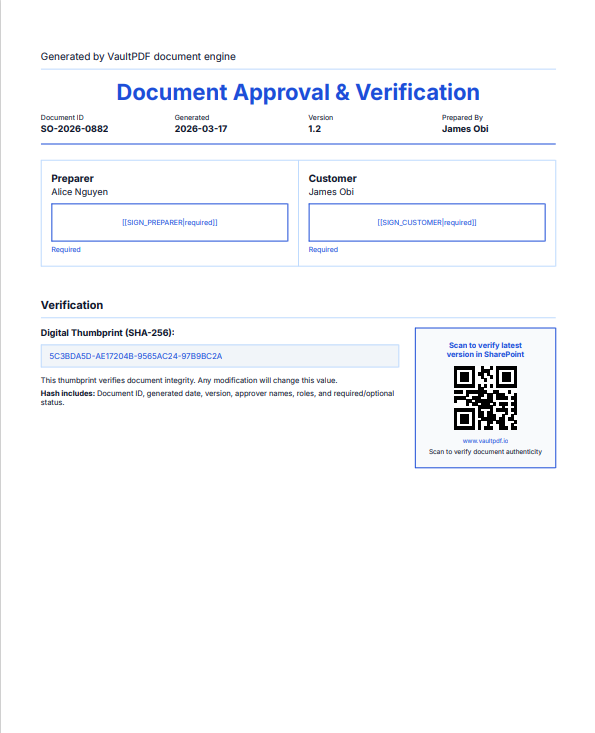
Approval & Verification page: signer grid, thumbprint, QR code
Auto-appended
What the thumbprint is and is not
The thumbprint is a SHA-256 hash of a short list of values: the document ID, the generated date, and each approver's role, name, and required or optional status. It does not cover the document's content, layout, amounts, version, signature images, or signing dates, so changing any of those leaves it unchanged. It is printed inside the document, so anyone who can edit the document can edit the thumbprint with it, and nothing else in the platform records it. It is a consistency reference for the approver list, not proof that a document is unaltered, and it is not a signature. To check that a document is unaltered, compare the file against the audit record: for a document sealed by REFRACT eSign, the audit chain records the SHA-256 of the PDF before and after sealing.
Triggering the Approval Page
The page is shown when any of these conditions is true, listed in evaluation order:
| Source | Field | Effect |
|---|---|---|
data.documentAttestation.showApprovalPanel | true | Show approval page |
data.showApprovalPanel | true | Show approval page (legacy top-level) |
templateSettings.approvalPanel.enabled | true | Show approval page (designer toggle) |
data.showApprovalPanel | false | Suppress approval page even when template enables it |
data.documentAttestation.showApprovalPanel | false | Suppress approval page even when template enables it |
Approval Page Data Structure
Signatures for the approval page come from exactly the same signatures object used by inline zones:
{
  "showApprovalPanel": true,
  "documentId": "PO-2026-001",
  "generatedDate": "2026-03-16",
  "version": "1.0",
  "user": "Jane Smith",
  "signatures": {
    "manager":  { "name": "Robert Chen",  "date": "2026-03-15", "required": true  },
    "customer": { "name": "David Okafor", "date": "",           "required": false }
  }
}
Alternatively, group everything under documentAttestation (preferred for new payloads):
{
  "documentAttestation": {
    "showApprovalPanel": true,
    "documentId": "PO-2026-001",
    "generatedDate": "2026-03-16",
    "version": "1.0",
    "user": "Jane Smith",
    "signatureColumns": 2,
    "includeDigitalThumbprint": true,
    "verificationUrl": "https://contoso.sharepoint.com/sites/docs/PO-2026-001",
    "signatures": {
      "manager":  { "name": "Robert Chen",  "required": true  },
      "customer": { "name": "David Okafor", "required": false }
    }
  }
}
Approval Page Properties
All properties support three resolution sources with this precedence:
documentAttestation.<field>→data.<field>→templateSettings.approvalPanel.<field>→ default
| Property | Type | Default | Description |
|---|---|---|---|
showApprovalPanel | boolean | none | Triggers the approval page. false explicitly suppresses it even when templateSettings.approvalPanel.enabled is true |
signatureColumns | 1|2|3 | 2 | Number of columns in the signer grid. Clamped to 1 - 3 |
includeDigitalThumbprint | boolean | false | Renders the thumbprint block, labelled "Digital Thumbprint (SHA-256)", in the Verification section |
verificationUrl | string | none | URL encoded as a QR code in the Verification section. Also accepts sharePointUrl or documentUrl as aliases. Supports {{token}} resolution |
headingLabel | string | "Approval & Verification" | Page heading text. Supports {{token}} resolution |
headingFontSize | number | 14 | Heading font size in points |
headingAlignment | string | "left" | Heading alignment: left, center, right |
borderStyle | string | "full" | Signer cell border style. full = full rectangle, minimal = bottom line only |
textColor | string | theme primary | Color of [[SIGN_ROLE|required]] anchor text in each cell. Use "#FFFFFF" to render it invisible |
user | string | none | "Prepared By" value shown in the document metadata strip. Supports {{token}} resolution |
version | string | "1.0" | Document version shown in the metadata strip |
priority | string | none | Optional priority label shown in the metadata strip |
templateSettings.approvalPanel (Designer Configuration)
Any of the above properties can be set once in the template so they never need repeating in the data payload:
{
  "templateSettings": {
    "approvalPanel": {
      "enabled": true,
      "signatureColumns": 2,
      "headingLabel": "Approval & Verification",
      "headingAlignment": "left",
      "borderStyle": "minimal",
      "textColor": "#FFFFFF",
      "includeDigitalThumbprint": false,
      "verificationUrl": "{{sharePointUrl}}"
    }
  }
}
Per-document overrides
Values in data.documentAttestation or data always take precedence over templateSettings.approvalPanel. You can set sensible defaults in the template and override individual fields per document at send time.
Verification Section
The Verification section appears below the signer grid when either includeDigitalThumbprint: true or a verificationUrl is provided.
| Content | Condition | Layout |
|---|---|---|
| Thumbprint block | includeDigitalThumbprint: true | Left column |
| QR code panel | verificationUrl present | Right column |
| QR only (no thumbprint) | verificationUrl present, thumbprint off | Centred |
The thumbprint is the first 32 hex characters of a SHA-256 hash, shown as four groups of eight. Its input is the document ID (documentId, or invoiceNumber, poNumber, or orderId when it is missing), the generated date (generatedDate, or invoiceDate or orderDate), and each approver's role, name, and required or optional status. The version, the document content, and signing dates are not part of it. See the warning above for what that means for verification.
Template JSON Examples
Single Signature (Manager Only)
{
  "schemaVersion": "2.0",
  "rootId": "root",
  "nodes": {
    "root": {
      "id": "root",
      "type": "root",
      "children": ["header1", "section_signatures"]
    },
    "header1": {
      "id": "header1",
      "type": "header",
      "props": {
        "title": "{{documentTitle}}",
        "subtitle": "{{orderNumber}}"
      }
    },
    "section_signatures": {
      "id": "section_signatures",
      "type": "section",
      "props": { "title": "Approval Signatures" },
      "children": ["sig_manager"]
    },
    "sig_manager": {
      "id": "sig_manager",
      "type": "signature",
      "props": {
        "label": "Manager Approval",
        "role": "manager",
        "width": 220,
        "height": 80,
        "required": true,
        "showName": true,
        "showDate": true
      }
    }
  }
}
Three-Stage Side-by-Side Approval
{
  "schemaVersion": "2.0",
  "rootId": "root",
  "nodes": {
    "root": { "id": "root", "type": "root", "children": ["section_sigs"] },
    "section_sigs": {
      "id": "section_sigs",
      "type": "section",
      "props": { "title": "Approval Signatures" },
      "children": ["sig_preparer", "sig_manager", "sig_customer"]
    },
    "sig_preparer": {
      "id": "sig_preparer",
      "type": "signature",
      "props": { "label": "Prepared By",        "role": "preparer", "width": 220, "height": 80, "required": true,  "showName": true, "showDate": true }
    },
    "sig_manager": {
      "id": "sig_manager",
      "type": "signature",
      "props": { "label": "Manager Approval",   "role": "manager",  "width": 220, "height": 80, "required": true,  "showName": true, "showDate": true }
    },
    "sig_customer": {
      "id": "sig_customer",
      "type": "signature",
      "props": { "label": "Customer Signature", "role": "customer", "width": 220, "height": 80, "required": false, "showName": true, "showDate": true }
    }
  }
}
Designer Shorthand Notation
Prepared By
{{signatureZone:preparer width=220 height=80 required=true}}

Manager Approval
{{signatureZone:manager width=220 height=80 required=true}}

Customer Signature
{{signatureZone:customer width=220 height=80 required=false}}
Page Break Behaviour
If a row of signature zones does not fit within the remaining page height, REFRACT PDF emits a page break before the section. Keep height consistent across zones in the same row for predictable layout.
Approval Page with Thumbprint and QR Code
{
  "documentTitle": "Service Agreement",
  "documentId": "MSA-2026-ENT-007",
  "generatedDate": "2026-03-16",
  "version": "2.1",
  "documentAttestation": {
    "showApprovalPanel": true,
    "signatureColumns": 3,
    "includeDigitalThumbprint": true,
    "verificationUrl": "https://contoso.sharepoint.com/sites/contracts/MSA-2026-ENT-007",
    "borderStyle": "minimal",
    "textColor": "#FFFFFF",
    "signatures": {
      "preparer": { "name": "Alice Nguyen", "required": true  },
      "legal":    { "name": "James Obi",    "required": true  },
      "cfo":      { "name": "",             "required": true  }
    }
  }
}
Integration Notes
- REFRACT eSign completes the zones: REFRACT PDF renders the zones, and REFRACT eSign matches signers to them by role. See How Zones Connect to REFRACT eSign.
- No payload required for anchor placement: The anchor is structural. Signer names and dates in the payload are for display only and do not affect anchor injection.
- Deterministic placement: Signature zones respect all REFRACT PDF layout rules including tables, overflow, and nested sections.
- Batch safe: Zones and approval pages work identically in real-time and batch queue rendering modes.
- Inline zones hidden when approval page active: When
showApprovalPanelistrue, inline signature zone nodes are automatically hidden from the main document body. All signers appear exclusively on the Approval page. - SharePoint metadata: After signing, completion metadata can be stamped back to SharePoint for a full audit trail.
Ready to add signatures to your documents?
Explore the rendering pipeline to understand how signature zones interact with nested tables and overflow handling.
REFRACT Template Assist
AI-assisted template design that turns an existing document, sample data, and business requirements into a production-ready REFRACT template - validated, rendered, and approved before deployment.
REFRACT Packs - Template & Process Catalog
Pre-built content bundles that combine document templates, governance workflows, validation workflows, approval processes, and delivery configurations into deployable business solutions.