
REFRACT Platform for Dynamics 365 Sales
Complete integration guide for Dynamics 365 Sales consultants and developers. Install, configure, and use REFRACT PDF with on-demand PDF generation, SharePoint storage, e-signature workflows, and audit trails - directly from CRM records.
From Installation to First Contract: Four Steps. One Working Session.
No database to provision. No portal to build or host. No separate identity system.
REFRACT Platform deploys into your existing Microsoft environment and uses services you already govern - Azure, SharePoint, Dataverse, and Microsoft Entra ID.
- Provision Storage: SharePoint libraries and configuration are created automatically
- Deploy Runtime Services: Dispatcher and Processor are deployed into your Azure subscription
- Load Starter Packs: Managed Solution imported with pre-configured templates for Quotes, Opportunities, Contracts, and more
- Generate and Open Lifecycle: Generate your first contract or proposal directly from a CRM record and open the Lifecycle Workspace with full audit visibility
Most organizations can deploy REFRACT Platform, generate a first document, and open the Lifecycle Workspace in a single working session.
Overview
REFRACT Platform extends Microsoft Dynamics 365 Sales with document capabilities. Sales users generate PDFs directly from CRM records - Quotes, Opportunities, Accounts, Contacts, and more - without leaving Dynamics 365. Documents are stored in SharePoint, can be routed for approval or e-signature, and every lifecycle event is captured in an auditable record.
Key characteristics:
- Schema-driven rendering - Templates are JSON definitions that map CRM field data to PDF layouts
- In-tenant processing - All PDF generation runs inside the customer's Azure environment; payloads never leave the customer's Microsoft 365 tenant
- SharePoint integration - Documents store natively in SharePoint via Microsoft Graph
- Native CRM actions - Command Bar buttons on forms and list views trigger document processing without leaving Dynamics 365
- Pull model - CRM polls the Dispatcher for workflow status; Dispatcher never writes back to Dataverse
- Flexible workflows - Sequential or parallel approval and e-signature routing with audit capture
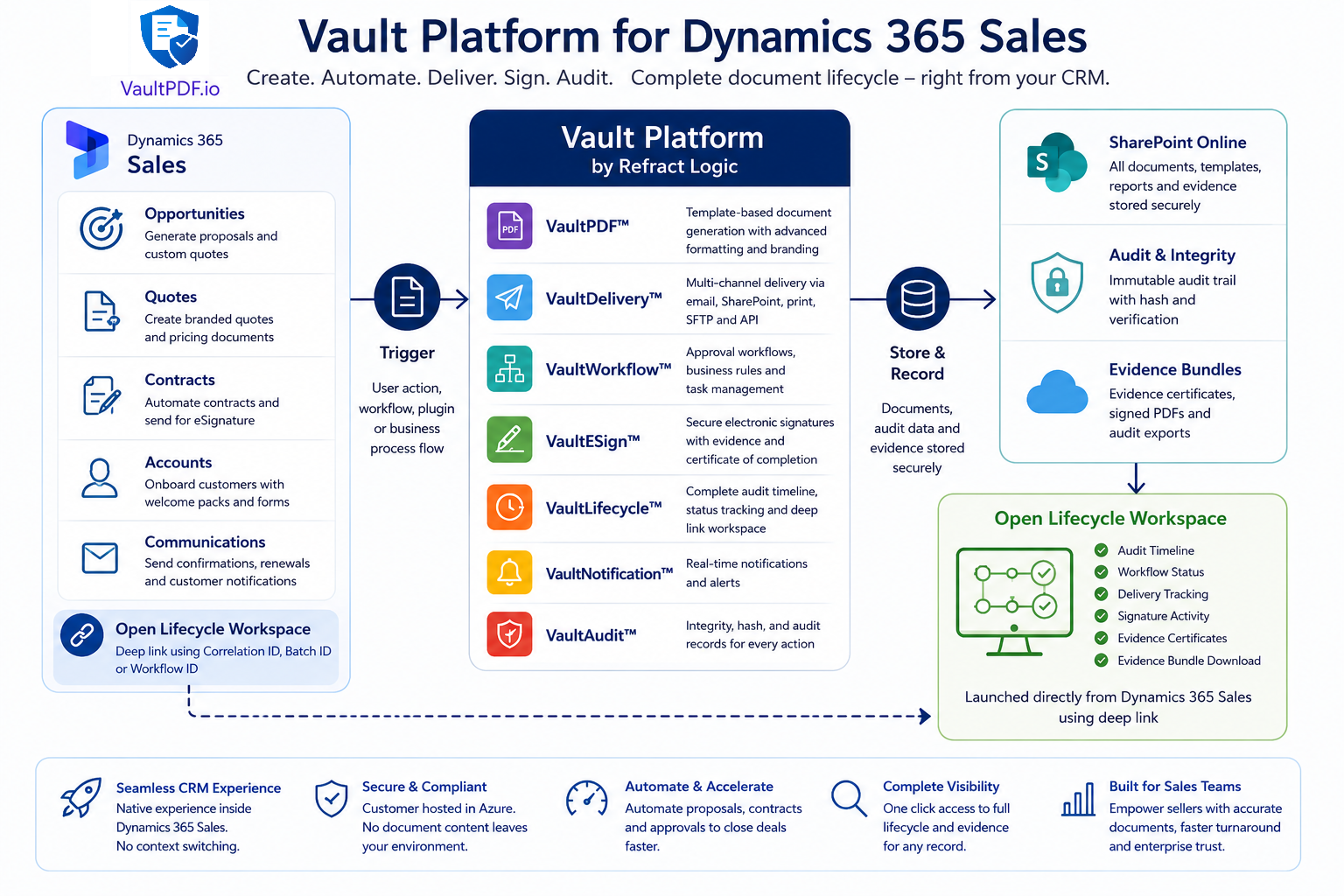
Native Dynamics 365 Sales Integration
All five document operations are available directly from the Dynamics 365 Command Bar - no Power Automate flows, no portal switching, no external tools required.
| Action | Available From |
|---|---|
| Generate Document | Command Bar - record form and list view |
| Open Document | Command Bar - record form |
| Send for Signature | Initiated via Generate Document with workflow enabled |
| Sync Workflow Status | Command Bar - record form |
| Get Signed Document | Command Bar - record form |
Source-System Native Experience
- Command Bar Actions on every supported entity
- Metadata-Driven Templates - no code changes to add document types
- SharePoint Document Storage via Microsoft Graph
- Native Workflow Tracking with configurable enforcement
- One-Click REFRACT eSign
- Documents Stored in Your Azure Subscription - rendering and storage run in your tenant; REFRACT eSign uses a REFRACT-hosted portal to reach signers
- Audit and Evidence Tracking on every lifecycle event
The Command Bar initiates operations through a Custom Dataverse API. Business logic executes server-side within Dataverse plugins - no document generation logic runs in the browser.
Architecture Overview
The REFRACT Platform for Dynamics 365 Sales runs rendering, storage, and audit within the customer's environment; REFRACT eSign uses a REFRACT-hosted portal to reach signers. Processing is server-side - the Command Bar buttons are the only user-facing touchpoint; no Power Automate flows are involved.
Dynamics 365 Sales
  Command Bar Buttons
  [Process Document] [Open Document]
  [Sync Workflow Status] [Get Signed Document]
         │
         ▼
  REFRACT CRM Integration  (server-side, runs within Dataverse)
  ├── Reads template and field mapping configuration
  ├── Reads CRM record data
  ├── Uploads record payload to SharePoint (Microsoft Graph)
  └── Calls REFRACT Dispatcher - PDF rendered and stored in SharePoint
         │
         ▼
  REFRACT Dispatcher
  (PDF rendering, workflows,
e-signatures, delivery)Capabilities at a Glance
| Capability | Description | Use Case |
|---|---|---|
| PDF Generation | Render formatted PDFs from any CRM record using configurable templates | Quotes, proposals, contracts, account summaries |
| SharePoint Storage | Automatically upload generated PDFs and JSON payloads to SharePoint | Compliance document retention, team document access |
| E-Signature | Route documents to signers sequentially or in parallel through the REFRACT Platform engine | Contracts, agreements, NDAs |
| Approval Workflows | Trigger validation workflows; enforcement blocks Quote and Opportunity operations while a workflow is pending or rejected | Quote activation, opportunity closure |
| Document Links | Every generated document links back to its CRM source record for easy access and full lifecycle traceability from the REFRACT Lifecycle portal | Audit trail from CRM record to SharePoint PDF |
Prerequisites
Before installation, ensure the following are in place:
Environment Requirements
- Dynamics 365 Sales (any current release with Dataverse)
- Microsoft 365 tenant with Azure AD
- REFRACT SharePoint Access app registration with the Microsoft Graph application permission
Sites.ReadWrite.All(admin-consented) - A Dynamics 365 Sales connector app registration with the
Render.AccessandLifecycle.Readerapplication permissions on "REFRACT Dispatcher API" (admin-consented) - SharePoint site with at least one document library for PDF output and one for templates
- REFRACT Dispatcher deployed in the customer's Azure subscription
Required Credentials and Configuration
Prepare the following before starting installation:
-
REFRACT SharePoint Access app registration (for SharePoint access)
- Application (client) ID
- Client secret
- API permissions:
Sites.ReadWrite.Allwith admin consent
-
Microsoft Graph Identifiers
- Tenant ID
- SharePoint Drive ID for the output document library
- SharePoint Drive ID for the templates library
-
Dynamics 365 Sales connector app (you create it; see Connect a source system)
- Dispatcher base URL
- Tenant ID, and the connector app's client ID and client secret
- Scope:
api://<dispatcher-app-client-id>/.default, where<dispatcher-app-client-id>is the client ID of "REFRACT Dispatcher API"
Dispatcher Dependency
The Dispatcher is a separately deployed Azure Function, deployed in your own Azure subscription. It must be provisioned before you can generate PDFs. Contact sales@refractlogic.com to arrange deployment. The credentials the plugin uses belong to app registrations in your own tenant: you create the Dynamics 365 Sales connector app yourself.
Installation
The entire REFRACT Platform for Dynamics 365 Sales ships as a single managed solution. There is no per-entity installation - all entities are supported by the same solution from the moment it is imported.
Import the Managed Solution
In the Power Platform Admin Center, select the target environment and navigate to Solutions.
Click Import solution and upload the managed solution zip file (solution unique name RefractPlatformD365Sales) provided by Refract Logic.
The import adds:
- Custom Dataverse tables for template configuration and document tracking
- Command Bar buttons on all eight supported CRM entities (Quote, Opportunity, Account, Contact, Order, Invoice, Case, Lead)
- The REFRACT User security role
- 12 Environment Variables, 9 of them required (populated in the next step)
- Admin Custom APIs including
refract_InitializeDefaultsandrefract_ValidateSettings
No Restart Required
Dynamics 365 loads the solution immediately after import. Command Bar buttons appear on the next page refresh. No server restart is needed.
Assign the REFRACT User Security Role
Navigate to Settings → Security → Users in Dynamics 365 and open each user's record.
In the Security Roles section, assign the REFRACT User role included in the managed solution.
| Who needs the role | Why |
|---|---|
| All users who generate documents | Required to generate documents and view document links on CRM records |
| Administrators configuring templates | Required to access refract_ tables in Power Apps |
Role Required Before First Use
Users without the REFRACT User security role receive an access error when clicking any Command Bar button. Assign the role before the user's first session.
Verify the Solution
In Power Platform Admin Center → Solutions, confirm REFRACT Platform for D365 Sales is listed with status Installed.
Open the target Dynamics 365 environment and navigate to a Quote or Opportunity record. Confirm the Process Document, Open Document, Sync Workflow Status, and Get Signed Document buttons appear in the Command Bar.
Initial System Setup
All connection credentials are stored as Dataverse Environment Variables included in the managed solution. These must be populated before the integration can process any documents.
Configure Environment Variables
In Power Platform Admin Center, open the target environment and navigate to Solutions → REFRACT Platform for D365 Sales → Environment variables.
Populate the Microsoft Graph and Dispatcher variables below. The 2 batch-threshold variables are optional and, as noted below, are not currently read by any plugin code.
Configure Microsoft Graph (SharePoint Access)
| Environment Variable | Where to Find It |
|---|---|
refract_graph_tenantid | Azure Portal → Azure Active Directory → Overview → Tenant ID |
refract_graph_clientid | Azure Portal → App Registrations → REFRACT SharePoint Access → Application (client) ID |
refract_graph_clientsecret | Azure Portal → App Registrations → REFRACT SharePoint Access → Certificates & Secrets → create a secret and copy the Value |
refract_graph_driveid | Microsoft Graph Explorer: GET /sites/{siteId}/drives → copy the id of the output document library |
refract_graph_templatesdriveid | Microsoft Graph Explorer: GET /sites/{siteId}/drives → copy the id of the templates document library |
refract_graph_templatessourcefolder | Folder path within the templates library where the CRM template files are stored, e.g. /CRM. The template browser lists .vpdf files only; .rpkg support is planned. |
Azure AD App Permissions
REFRACT SharePoint Access must hold the Microsoft Graph application permission Sites.ReadWrite.All, admin-consented by a Privileged Role Administrator. Without this consent, all SharePoint uploads fail with a 403 Forbidden error. This app is only for SharePoint: the Dispatcher connection below uses the Dynamics 365 Sales connector app.
Configure the Dispatcher Connection
| Environment Variable | Description |
|---|---|
refract_dispatcher_baseurl | Dispatcher base URL, e.g. https://func-dispatcher-contoso-prod.azurewebsites.net/api |
refract_dispatcher_tenantid | Your Microsoft Entra tenant ID |
refract_dispatcher_clientid | The Dynamics 365 Sales connector app's client ID. Not the client ID of "REFRACT Dispatcher API", and not REFRACT SharePoint Access. |
refract_dispatcher_clientsecret | The Dynamics 365 Sales connector app's secret value |
refract_dispatcher_scope | api://<dispatcher-app-client-id>/.default, where <dispatcher-app-client-id> is the client ID of "REFRACT Dispatcher API". Optional in the solution: when it is empty, the plugin requests <refract_dispatcher_clientid>/.default, which is right only for an install made before this variable existed, whose refract_dispatcher_clientid is "REFRACT Dispatcher API" itself. Such an install keeps working unchanged. |
These are your Dynamics 365 Sales connector app's values; see Connect a source system. The connector app must hold the Render.Access application permission on "REFRACT Dispatcher API" for every call, and Lifecycle.Reader for Open Document, Sync Workflow Status, and Get Signed Document, both admin-consented. See Integrations that use app tokens.
Secrets Are Stored Encrypted
Environment Variable secrets are stored encrypted in Dataverse. Their values are not visible in the Power Platform Admin Center after saving.
Batch Threshold Variables (Not Currently Consumed)
Two additional Environment Variables are defined by the solution - refract_batchwarningthreshold and refract_batchmaxthreshold - but no plugin code reads either one today. There is no list-view batch generation action, so these thresholds have no effect. Leave them at their defaults; do not configure a workflow around them.
Seed Default Templates
The refract_InitializeDefaults Custom API creates ready-to-use default templates for all eight supported entities in one call. Run this once after configuring environment variables.
In Power Automate or a Custom API test client (e.g. XrmToolBox, Postman with Dataverse auth), call:
Action: refract_InitializeDefaults
Parameters:
  overwriteExisting: false   (set true to regenerate if you want to reset to defaults)
The API creates refract_template, refract_templatefield, and refract_templateassignment records for Quote, Opportunity, Account, Contact, Order, Invoice, Case, and Lead. Use this as a starting point, then customise the templates in the next step.
SharePoint Templates Required
Seeding defaults creates the Dataverse configuration records but does not upload template files. The seeded records point to .vpdf paths, so upload matching files to your templates SharePoint library at those paths, such as CRM/Quote/default-quote.vpdf and CRM/Opportunity/default-opportunity.vpdf. The CRM add-on currently works with .vpdf template files only: its template browser lists only .vpdf files. Support for .rpkg is planned. Contact sales@refractlogic.com for the default template files.
Template Configuration
Templates define which CRM fields map to which PDF regions, how data is structured, and how the resulting document is routed. Template configuration is stored in six Dataverse custom tables and managed directly via Power Apps or the standard Dynamics 365 table views.
Open Template Tables
Navigate to make.powerapps.com, select your environment, and go to Tables. Search for refract_ to find all REFRACT Platform tables.
Alternatively, use Advanced Find (the funnel icon in Dynamics 365 Sales) and search within the REFRACT Platform tables.
The relevant tables are:
- refract_template - Template definitions (one row per template)
- refract_templatefield - Field mappings (one row per mapped CRM field)
- refract_templateassignment - Assignments (which templates appear on which entities)
- refract_templatesigner - E-signature signer configuration
- refract_templaterecipient - Delivery and workflow recipient configuration
Create a Template
Create the Template Record
Navigate to Templates and click New.
| Field | Description |
|---|---|
| Name | Human-readable template name, e.g. Quote - Standard |
| Entity Logical Name | The CRM entity this template applies to, e.g. quote, opportunity, account |
| Template Variant ID | SharePoint path to the template file in the templates library, e.g. CRM/Quote/default-quote.vpdf |
| Dispatch Mode | The field exists (Standard, Per Record, Single Array, Grouped Array, mirroring the Business Central template schema) but the CRM plugin's Process Document call always processes exactly one record. Leave it at Standard - the other values have no effect from CRM today |
| Is Active | Must be enabled for the template to appear in the gallery |
Map CRM Fields
Navigate to Field Mappings and click New for each field you want to include.
| Field | Description |
|---|---|
| Name | Descriptive label for this mapping, e.g. Quote Name |
| Template | Select the template created in the previous step |
| CRM Field Name | Exact field logical name on the CRM entity, e.g. name, totalamount |
| Placeholder Key | The key in the REFRACT Platform payload JSON, e.g. documentTitle, totalAmount |
| Section Type | Header, Line, or Footer - controls where this field appears in the payload |
| JSON Group | Optional nesting key for grouped fields, e.g. billing, shipping |
| Sequence Number | Controls field ordering within a section |
Finding CRM Field Names
To look up the logical field name for any CRM attribute, navigate to Settings → Customizations → Customize the System in Dynamics 365, open the entity, and select Fields. The Name column shows the logical name (without the publisher prefix for standard fields, e.g. name, totalamount).
Assign the Template to an Entity
Navigate to Template Assignments and click New.
| Field | Description |
|---|---|
| Template | The template to assign |
| Entity Logical Name | Must match the template's entity |
| Context | form - show only on the record form; view - show only in list views; both - show everywhere |
A template must have at least one assignment before it appears in the gallery for end users.
Configure Routing (Optional)
Navigate to refract_templatesigner and click New for each signer.
| Field | Description |
|---|---|
| Template | The template for this signer |
| Email Field Name | Logical name of the CRM field holding the signer's email, e.g. emailaddress1. The Dispatcher resolves this against the CRM record at generation time. |
| Name Field Name | Logical name of the CRM field holding the signer's display name, e.g. fullname |
| Signer Role | e.g. Signer, Witness, Approver |
| Sequence Number | Signing order for sequential mode |
Enable eSign Enabled on the Template record to activate e-signature routing.
Enable Workflow Enabled on the Template record and set Workflow Enforcement Mode:
| Mode | Behaviour |
|---|---|
None | Informational only - workflow state is tracked but does not block CRM operations |
Validate | Blocks the operation with an error, the same as Block. A Dataverse plugin has no way to show a dismissible warning, so Validate and Block behave identically today |
Block | CRM operations are blocked with an error until the workflow reaches complete |
Enforcement only runs on Quote and Opportunity
The server-side enforcement plugin is registered only on Update, CloseQuote (Quote), and WinOpportunity (Opportunity) - it does not block operations on Account, Contact, Order, Invoice, Case, or Lead, even though the Command Bar buttons appear on all eight entities.
Navigate to Recipients and click New for each workflow recipient. Set Recipient Type to Workflow.
On the Template record, enable Watermark Enabled and set Watermark Text, e.g. CONFIDENTIAL, DRAFT, or FOR SIGNATURE.
The watermark is rendered on every page of PDFs generated from this template.
Processing Documents
Once templates are configured, end users process documents directly from Dynamics 365 using the Command Bar buttons on any supported entity record.
The Four Actions
Click [Process Document] to generate a PDF from the current record.
- The Template Gallery opens - showing all templates assigned to this entity
- Select the template and click Generate
- REFRACT Platform builds the CRM payload, uploads it to SharePoint, and calls the Dispatcher
- The Dispatcher renders the PDF, stores it in SharePoint, and returns a blob path
- A success notification appears: "Document generated successfully"
All four Command Bar actions are form-only, for the record currently open. There is no list-view or multi-record batch generation action.
Click [Open Document] to view the last generated PDF.
REFRACT Platform fetches the PDF's bytes from the Dispatcher, encodes them as base64, and passes them to Xrm.Navigation.openFile, which opens the PDF directly in the browser - there is no separate download link or SAS URL.
Documents up to 25 MB are supported this way. Above that size, the action shows an error asking you to open the document from SharePoint instead.
Available on the record form only (not list views).
Click [Sync Workflow Status] to check the current state of an in-progress workflow.
REFRACT Platform checks the current workflow state and displays it in a dialog:
"Workflow: Step 2 of 4 - Awaiting approval from finance@..."
If the workflow is Complete or Rejected, the outcome is saved against the record. Intermediate states are shown to the user only - there is no background sync; this is always a user-triggered action.
Click [Get Signed Document] to retrieve the sealed PDF after a workflow completes.
Same mechanism as Open Document: REFRACT Platform fetches the sealed PDF's bytes from the Dispatcher and opens them directly in the browser via Xrm.Navigation.openFile, including the 25 MB size limit and SharePoint fallback above it.
Use this after Sync Workflow Status confirms the workflow is Complete.
Supported CRM Entities
The managed solution ships with Command Bar customisations for the following entities. Additional entities can be added in a solution update without plugin code changes.
| Entity | Use Case | Server-Side Workflow Enforcement |
|---|---|---|
| Quote | Quote PDF for a customer - pricing summary, proposal | Yes |
| Opportunity | Proposal, pitch document, NDA, engagement letter | Yes |
| Account | Account summary, contract, renewal agreement | No |
| Contact | Personalised communication, welcome letter | No |
| Order | Sales order confirmation | No |
| Invoice | Invoice PDF (when D365 Sales invoicing is enabled) | No |
| Case | Case summary, resolution letter | No |
| Lead | Lead information pack, GDPR consent document | No |
All eight entities get the same four Command Bar actions, form-only, one record at a time. Only Quote and Opportunity have the server-side plugin that blocks a save, close, or win when a workflow is pending or rejected.
Next Steps
- Developer Guide - Technical architecture, detailed action flows, Dataverse table schemas, and deployment/ALM reference
- Troubleshooting Guide - Diagnose and resolve common issues with environment variables, plugins, SharePoint, and workflows
Troubleshooting - REFRACT PDF Business Central
Diagnose and resolve common REFRACT PDF issues. Permission errors, authentication failures, SharePoint connectivity, template problems, and batch operation failures.
Developer Guide - REFRACT Platform for Dynamics 365 Sales
Technical architecture, detailed action flows, Dataverse table schemas, Custom API and plugin reference, batch dispatch modes, workflow enforcement, and deployment/ALM for the REFRACT Platform CRM integration.