
REFRACT Platform for Dynamics 365 Business Central
Complete integration guide for Business Central consultants and developers. Install, configure, and extend VaultPDF with on-demand PDF generation, SharePoint storage, e-signature workflows, and audit trails.
From Installation to First Document: Four Steps. One Working Session.
No database to provision. No portal to build or host. No separate identity system.
REFRACT Platform deploys into your existing Microsoft environment and uses services you already govern - Azure, SharePoint, Dataverse, and Microsoft Entra ID.
- Provision Storage: SharePoint libraries and configuration are created automatically
- Deploy Runtime Services: Dispatcher and Processor are deployed into your Azure subscription
- Load Starter Packs: Templates, field mappings, and Business Central integrations are loaded and ready
- Generate and Open Lifecycle: Generate your first Business Central document and open the Lifecycle Workspace with full audit visibility
Most organizations can deploy REFRACT Platform, generate a first document, and open the Lifecycle Workspace in a single working session.
Overview
REFRACT Platform extends Microsoft Dynamics 365 Business Central with enterprise-grade document capabilities. Business Central comes pre-configured with ready-to-use templates for common documents (invoices, orders, remittances). All templates are fully customizable - no development required. Installation and system settings are pre-configured for immediate import, so you can generate your first PDF in minutes.
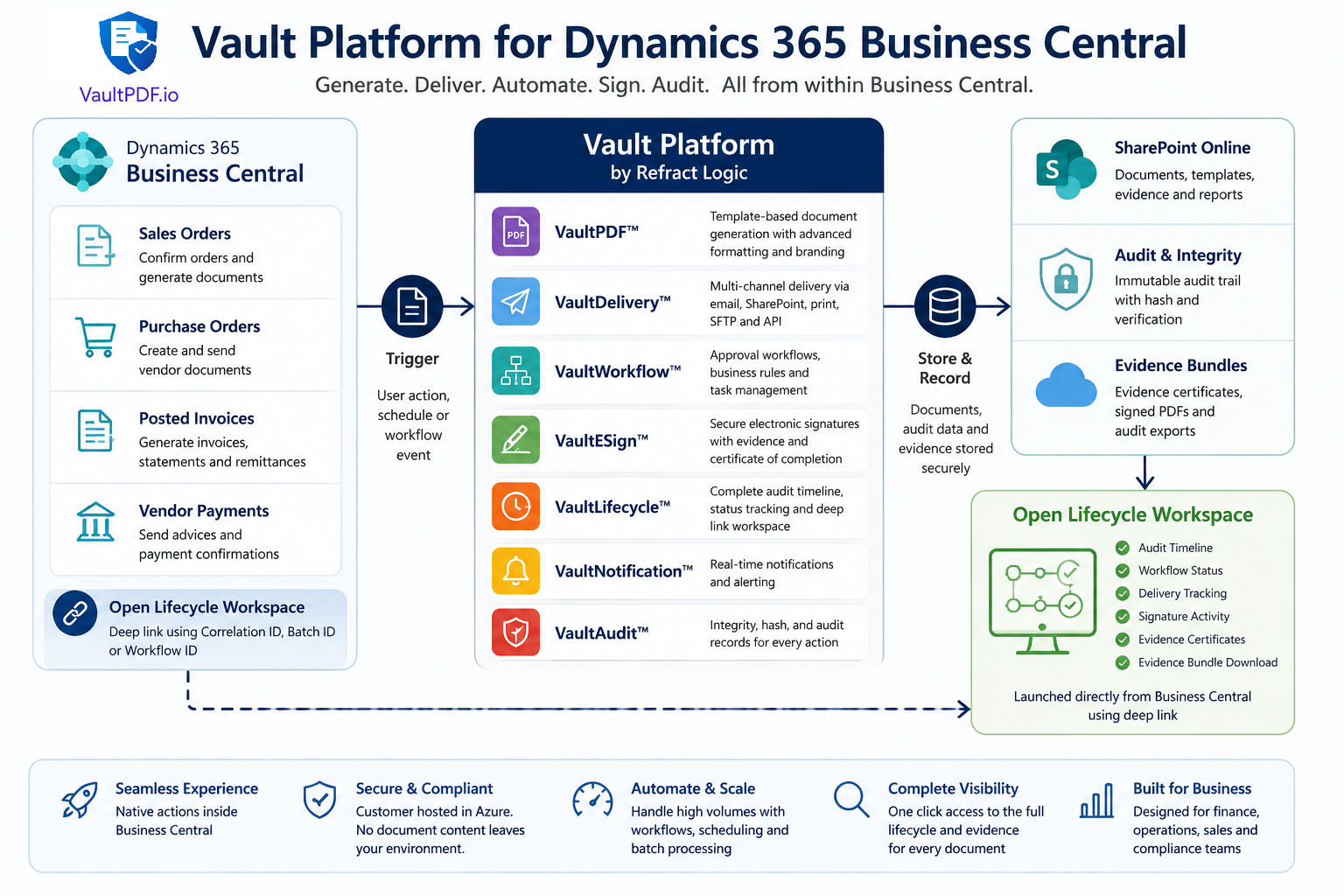
Generate formatted PDFs from any Business Central record, automatically store them in SharePoint, optionally route them through workflow engines for approvals and e-signing, and maintain searchable audit trails of every document lifecycle event.
Pre-built Templates Ready to Go
Business Central ships with professionally-designed, production-ready templates in the VaultPacks library. No custom development needed - import and use immediately, or customize to match your brand.
Key characteristics:
- Schema-driven rendering - Templates are JSON definitions that map Business Central data to PDF layouts -- In-tenant processing - All PDF generation runs inside the customer's Azure environment; payloads never leave the customer's Microsoft 365 tenant
- SharePoint integration - Documents store natively in SharePoint via Microsoft Graph
- Flexible workflows - Sequential or parallel approval and e-signature routing with audit capture
- Immutable audit records - Every document event (generation, approval, signature, delivery) logs to an integrity-validated archive
Architecture Overview
The REFRACT Platform for Business Central uses a single-tenant architecture. Each Business Central environment connects directly to its organization's Vault Dispatcher deployment hosted within the customer's Azure subscription. All document generation, governance workflows, secure delivery, and lifecycle processing occur within infrastructure controlled by the customer.
Microsoft Dynamics 365 Business Central
       ↓
   Vault AL Extension
       ↓
   JWT Token Issuance
   (Entra App Registration)
       ↓
   Function Key + JWT Validation
       ↓
Customer-hosted Vault Dispatcher Function App
       ↓
REFRACT Platform Services

   ├─ VaultPDF
   │  ├─ Document Generation
   │  ├─ PDF/UA Accessibility
   │  ├─ Structured Annexes
   │  └─ Evidence Packages
   │
   ├─ VaultWorkflow
   │  ├─ Approval Workflows
   │  ├─ Validation Rules
   │  ├─ Exception Reviews
   │  └─ Governance Routing
   │
   ├─ VaultDispatch
   │  ├─ Secure Delivery
   │  ├─ Recipient Verification
   │  ├─ Delivery Tracking
   │  └─ Confirmation Auditing
   │
   ├─ VaultESign
   │  ├─ Signature Requests
   │  ├─ Certificate Validation
   │  ├─ Attestations
   │  └─ Signing Evidence
   │
   └─ VaultLifecycle
    ├─ Activity Tracking
    ├─ Lifecycle Search
    ├─ Audit Evidence
    ├─ Compliance Reporting
└─ Governance AnalyticsCapabilities at a Glance
| Capability | Description | Use Case |
|---|---|---|
| PDF Generation | Render formatted PDFs from any Business Central document using configurable templates | Invoices, orders, reports, agreements |
| SharePoint Storage | Automatically upload generated PDFs and JSON payloads to SharePoint for centralized document management | Compliance document retention, team collaboration |
| E-Signature | Route documents to signers sequentially or in parallel through the REFRACT Platform engine | Contracts, approval forms, purchase agreements |
| Approval Workflows | Trigger validation workflows with configurable enforcement (validate or block processing) | Purchase requisitions, expense reports, policy updates |
| Distribution | Send documents to configurable recipient lists with delivery tracking and access logs | Customer statements, vendor remittances, partner communications |
| Batch Processing | Generate multiple PDFs in a single operation by record, group, or combined array | Monthly statement cycles, remittance runs, bulk document distribution |
Prerequisites
Before installation, ensure the following are in place:
Environment Requirements
- Business Central version 2024 Wave 1 (v27) or later
- Microsoft 365 tenant with Azure AD
- Azure subscription for Microsoft Graph API access
- SharePoint site with at least one document library for PDF output
Required Credentials and Configuration
Prepare the following before starting installation:
-
Azure AD App Registration
- Application (client) ID
- Client secret (Certificates & Secrets)
- API permissions:
Sites.ReadWrite.Allwith admin consent
-
Microsoft Graph Identifiers
- Tenant ID (Azure AD Overview)
- SharePoint site ID (via Microsoft Graph Explorer)
- Drive IDs for output and template libraries
-
Business Central Setup
- SUPER or VPDF-ADMIN permission set assigned to the setup user
- Deployment of the VaultPDF Dispatcher (Azure Function)
Critical Dependency
The Dispatcher is a separately deployed Azure Function hosted by VaultPDF. It is not included in the Business Central extension and must be provisioned before you can generate PDFs. Contact enterprise@vaultpdf.io to arrange deployment and receive connection credentials.
Installation
Install the VaultPDF Extension
Search for Extension Management in the Business Central Tell Me bar (Alt+Q).
Click Manage → Upload Extension and select the VaultPDF extension .app file.
Alternatively, search for VaultPDF on AppSource if available in your region and install directly.
After installation completes, refresh your browser. You will see new VaultPDF actions appear on supported document types: Sales Orders, Purchase Orders, Sales Invoices, Purchase Invoices, and more.
No Page Restart Required
Business Central loads the extension immediately. No server restart is needed. The new action bar items appear instantly after the browser refresh.
Assign Permission Sets
Navigate to Users in Business Central and open each user's record.
In the User Permission Sets section, add the appropriate permission set:
| Permission Set | Purpose |
|---|---|
VPDF-USER | Users who generate documents or open generated PDFs |
VPDF-REVIEWER | Users who need to trigger workflow status synchronization |
VPDF-ADMIN | Consultants and administrators managing templates, settings, and system configuration |
Assign permissions before the user's first visit to any VaultPDF page. Users without assigned permissions receive a clear error message with remediation steps.
Permission Requirement
Missing permission sets are the most common cause of access errors during initial setup. Verify all users have the required permission set before they access VaultPDF features.
Verify Extension Status
Search for Extension Management and locate the VaultPDF extension by Refract Logic.Confirm its status is Installed.
Search for View Permission Sets to verify that VPDF-USER, VPDF-REVIEWER, and VPDF-ADMIN are all present.
This confirms the extension is correctly registered in the customer's Business Central environment and ready for configuration.
Initial System Setup
All connection settings, credentials, and configuration are managed through the VaultPDF System Settings page. This single page is the customer's control center for the entire REFRACT Platform integration.
Access System Settings
Search for VaultPDF System Settings in the Tell Me bar. You will see page open with an empty list.
Initialize Default Keys
Click the Initialize Default Keys action in the action bar.
This creates all 15 required setting keys with empty values and displays them on the page, ready to populate.
Safe to Rerun
This action is idempotent. Running it multiple times only inserts missing keys and never overwrites values you have already entered. Use it safely during upgrades or to recover accidentally deleted keys.
Configure Microsoft Graph and SharePoint
For each setting key in the table below, click the row, enter the value in the Setting Value column, and click OK.
Fields marked with Is Secret = Yes are stored in Business Central Isolated Storage and never displayed after saving.
| Key | Where to Find It |
|---|---|
VAULTPDF_TENANT_ID | Azure Portal → Azure Active Directory → Overview → Tenant ID |
VAULTPDF_CLIENT_ID | Azure Portal → App Registrations → the customer's App → Application (client) ID |
VAULTPDF_CLIENT_SECRET | Azure Portal → App Registrations → the customer's App → Certificates & Secrets (create if missing) (Is Secret) |
VAULTPDF_GRAPH_SITE_ID | Microsoft Graph Explorer: GET /sites/{hostname}:/sites/{siteName} → copy id field |
VAULTPDF_GRAPH_DRIVE_ID | Microsoft Graph Explorer: GET /sites/{siteId}/drives → copy the id of the customer's output document library |
VAULTPDF_SITE_URL | The customer's SharePoint site base URL, e.g. https://yourorg.sharepoint.com/sites/Finance |
VAULTPDF_GRAPH_TEMPLATES_DRIVE_ID | Drive ID of the SharePoint library containing VaultPDF templates |
VAULTPDF_SOURCE_SYSTEM | Root folder name in the templates drive, e.g. RefractLogic or BusinessCentral |
Azure AD App Permissions
The App Registration must have Sites.ReadWrite.All permission granted in Azure AD and admin-consented by the customer's tenant administrator. Without this consent, SharePoint uploads fail with a 403 Forbidden error.
Configure the Dispatcher Connection
The Dispatcher is the remote Azure Function that processes document payloads and renders PDFs. Populate these keys with the credentials provided by Refract Logic:
| Key | Description |
|---|---|
VAULTPDF_DISPATCHER_BASE_URL | Azure Function base URL, e.g. https://func-vaultpdf.azurewebsites.net/api |
VAULTPDF_DISPATCHER_CODE | Azure Function host key (appended as ?code= in every request) |
VAULTPDF_DISPATCHER_TENANT_ID | Azure AD Tenant ID for the Dispatcher's OAuth token request |
VAULTPDF_DISPATCHER_CLIENT_ID | Azure AD Client ID for the Dispatcher's OAuth token |
VAULTPDF_DISPATCHER_CLIENT_SECRET | Azure AD Client Secret for the Dispatcher's OAuth token (Is Secret) |
VAULTPDF_DISPATCHER_SCOPE | OAuth scope, e.g. api://your-dispatcher-app-id/.default |
VAULTPDF_PORTAL_URL | REFRACT Platform Lifecycle Portal URL, e.g. https://portal.vaultpdf.com |
Test System Connectivity
Click the System Status Check action in the action bar.
Business Central calls the Dispatcher with an empty payload and downloads a VaultPDF_StatusReport.pdf. If the PDF opens successfully, connectivity to the Dispatcher is confirmed and healthy.
If the check fails:
- Review the error dialog for the HTTP status code and response body
- Verify the
VAULTPDF_DISPATCHER_BASE_URLandVAULTPDF_DISPATCHER_CODEare correct - Confirm the
VAULTPDF_DISPATCHER_CLIENT_SECREThas not expired - Check that the customer's Azure AD tenant can reach the Dispatcher Azure Function
Run this check after every change to Dispatcher settings to confirm the connection remains healthy.
Validation Best Practice
Make the System Status Check part of your weekly maintenance checklist, especially before running batch operations or critical document generation cycles.
Import Pre-configured Settings
A pre-configured JSON file is included with your deployment package, containing all required system settings. Click Import from JSON and select the file.
This bulk-loads all key/value pairs in a single step, including encrypted secrets. All settings are immediately ready to use - no additional manual configuration required.
Configure Batch Processing (optional)
The following keys control batch execution thresholds, log retention, and completion notifications.
| Key | Default | Description |
|---|---|---|
VAULTPDF_BATCH_ASYNC_THRESHOLD | 500 | Minimum record count at which VaultPDF shows the execution-choice prompt (Run now in background / Schedule for later / Generate now). Set lower (e.g. 50) for faster interactivity, or higher (e.g. 2000) if you prefer synchronous execution for larger sets. |
VAULTPDF_LOG_RETENTION_DAYS | 90 | Days to retain completed and failed batch job entries and upload log rows before automatic purge. Set to 0 to disable auto-purge entirely. |
VAULTPDF_BATCH_NOTIFY_WEBHOOK_URL | (blank) | URL to POST a JSON completion notification when an async batch job finishes. Leave blank to disable. See Webhook Completion Notifications for full details. |
VAULTPDF_BATCH_NOTIFY_ON | FailureOnly | Controls when webhook notifications fire. Always = every completed job; FailureOnly = only Partial and Failed jobs. |
All four keys are created by Initialize Default Keys - you only need to edit them if you want non-default behaviour. None are secrets and all are safe to share in configuration exports.
Recurring Schedules
For unattended, time-based batch runs (nightly remittance, weekly statements), use the Schedule Batch action on the VaultPDF Template Card to create a recurring Job Queue entry. No user needs to be logged in for scheduled runs to execute. See Scheduled and Recurring Batch Jobs in the Template Configuration guide.
Configure Automated Generation (optional)
The following key controls retry behavior for the VaultPDF Generation Queue - used when documents are generated automatically on posting or via external API calls.
| Key | Default | Description |
|---|---|---|
VAULTPDF_GEN_QUEUE_MAX_RETRIES | 3 | Maximum number of processing attempts for a failed Generation Queue request before it is marked Dead (Max Retries Reached). Increase in environments with transient connectivity issues; decrease for faster failure surfacing. |
This key is created with a default value of 3 by Initialize Default Keys. Only edit it if your environment requires a different retry policy. Individual queue rows also carry their own Max Retries field - this system setting provides the default applied at queue time.
To enable automated generation, you also need to create a recurring Job Queue Entry for codeunit 77136 (VaultPDF Gen Processor). See Automated Document Generation for full setup instructions.
Next Steps
- Template Configuration - Configure templates, dispatch modes, e-signature, batch operations, batch filters, multi-hop traversal, and workflow enforcement
- Automated Document Generation - Auto-generate on post, external API triggers, and Generation Queue monitoring
- Pre-built Templates & VaultPacks - Browse professionally-designed templates ready to import
- Developer Guide - Extend VaultPDF with custom AL code, integration events, and enums
- Event & Payload Reference - Complete integration event table and dispatcher payload structure
- Troubleshooting Guide - Common issues and solutions
Immutable Archive - Retention Policy
Retention period, write-lock behaviour, compliance standards satisfied, and GDPR considerations for the VaultAudit immutable archive.
Template Configuration - VaultPDF Business Central
Configure VaultPDF templates for PDF generation, batch dispatch, e-signature, approval workflows, distribution, and multi-hop field traversal in Business Central.